

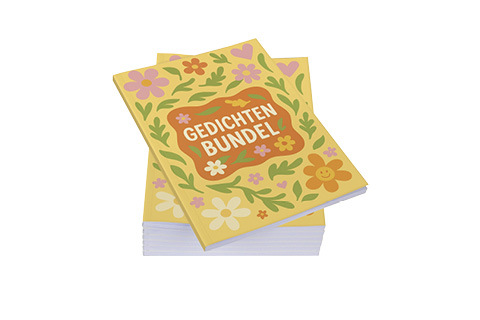
At Bookadew, we ask you to submit your own files as a PDF after placing your order. But how do you actually do this? We understand that not everyone is a professional designer or owns professional programs like Adobe InDesign. Therefore, in this blog, we provide some further explanation on how to create a good PDF file with the correct formats and options in Microsoft Word (version 2019). Good luck!
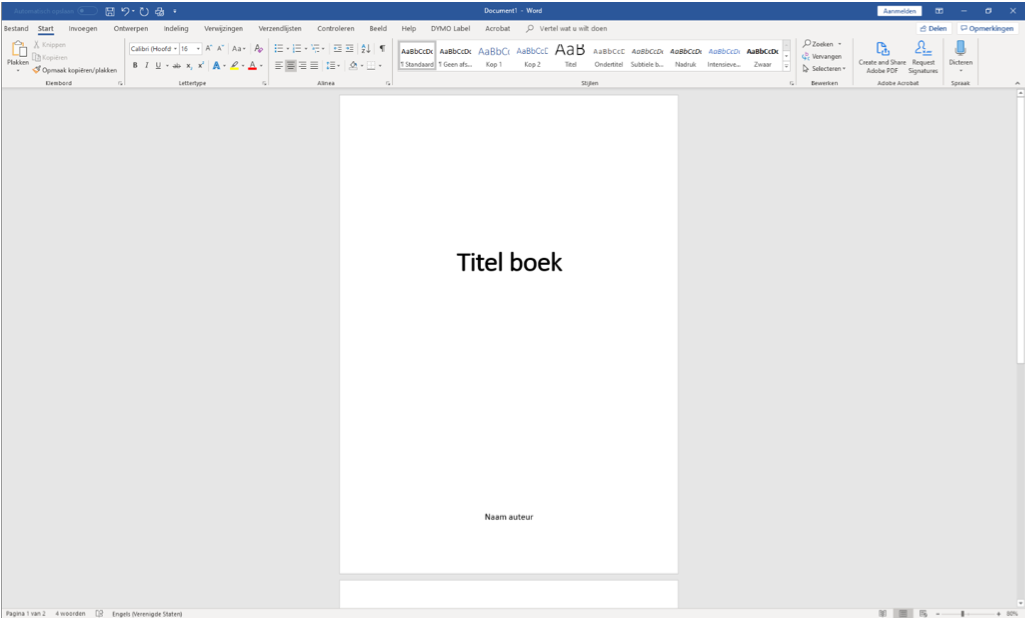
French title page
You have likely come across this concept in books quite often: the French title. This is the first page of the book where only the title is displayed. Sometimes the author is also mentioned. This is usually done in the following manner: the title appears large in the center, and the author follows slightly smaller at the bottom.
The format
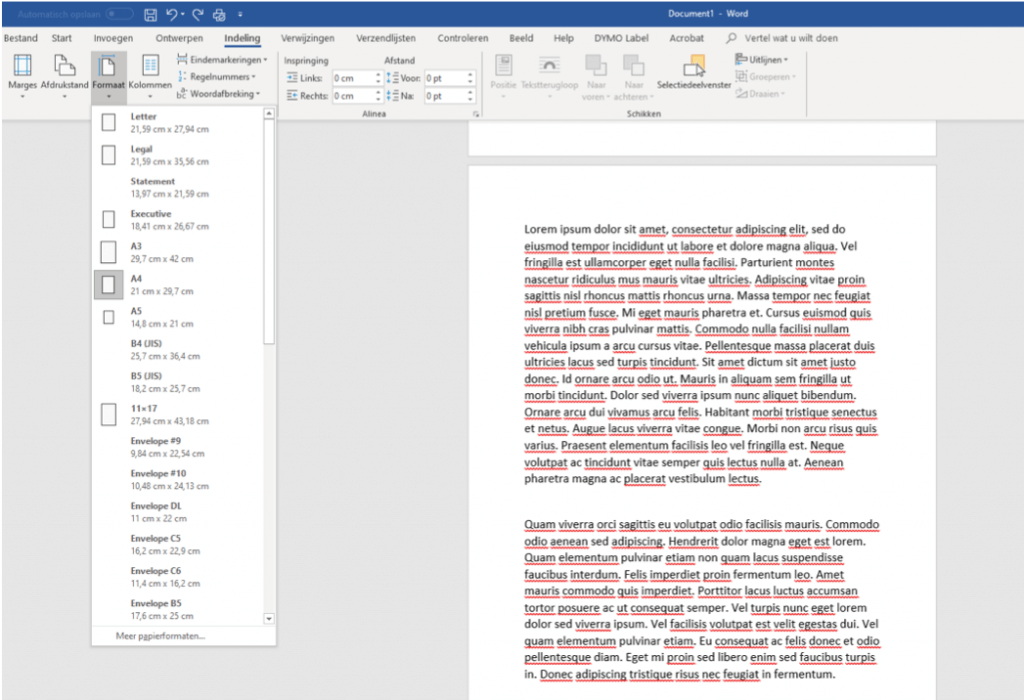
By default, you work with A4 format in Word, but this is sometimes not the format you want for your final book. It is important to adjust the format before you fully format the file to your liking and save it as a PDF. If you finish a book in Word without changing the format beforehand, you will notice that everything shifts once you do so. So make sure you set the book to the correct format and then double-check everything!
How do I change the size?
- Go to “Layout” in the menu bar.
- Click on “format”.
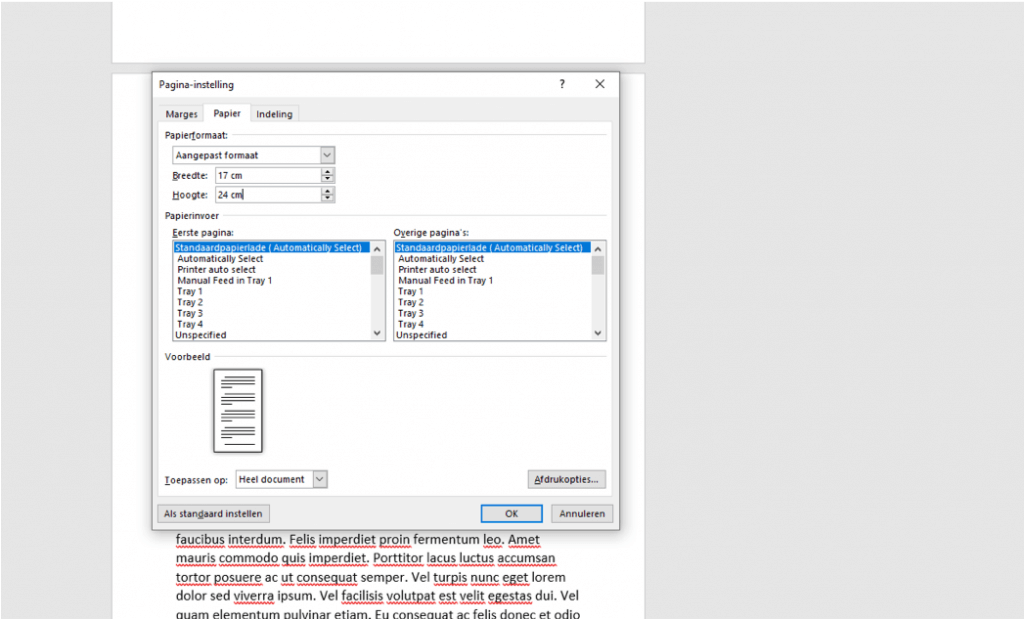
- Choose the desired size. You can choose standard options or select a custom size at the bottom by clicking on “more paper types”.
- If different: enter the desired format in the “page settings” pop-up screen.
Font types and font size
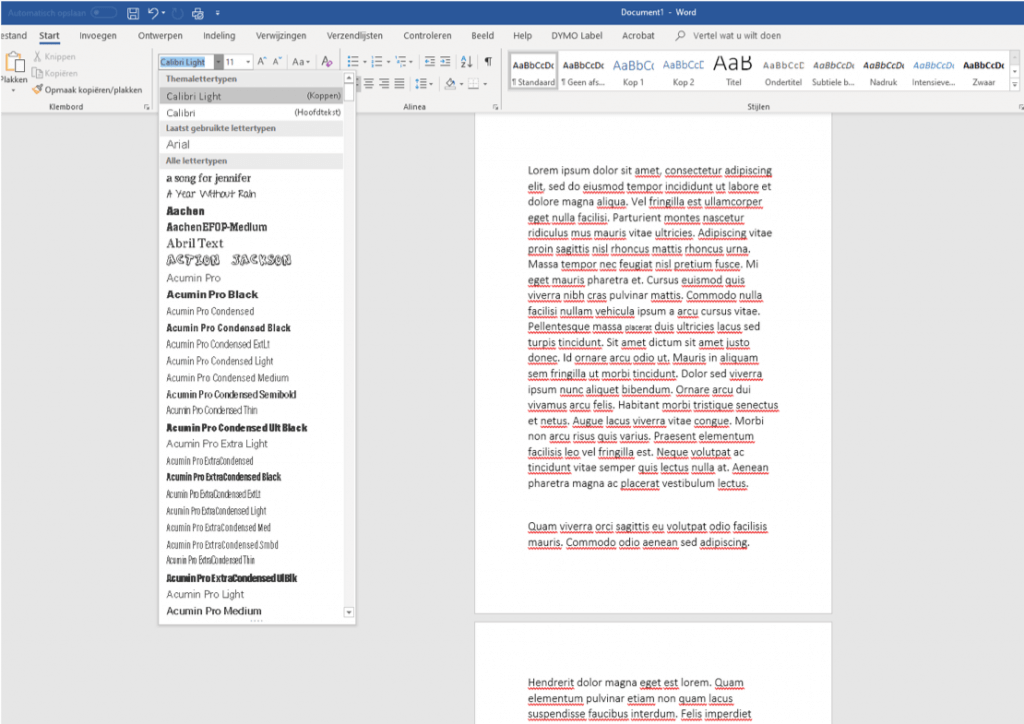
The choice of font and font size is of great importance for the readability and atmosphere of your book. We will tell you more about this choice in this blog. The font is easy to change in Word; make sure to do this after you have changed the size.
TIP: To get a good idea of how large the letters will appear on the paper, it is recommended to make a printout at 100% (check this in your print settings).
How do I change the font and font size?
- Click on “start” in the menu bar.
- Click on the 2 dropdown menus one by one.
- Select the correct font and desired font size here.
Page numbers
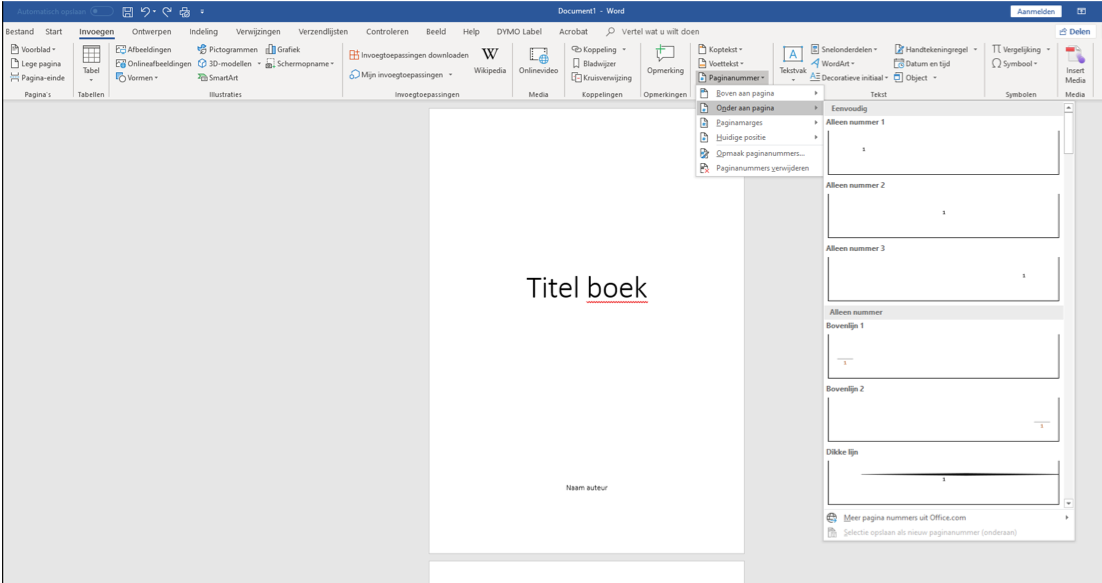
Most books are provided with page numbers. This ensures an overview and allows you to easily find specific pages. Whether you place these page numbers at the bottom, top, in the middle, or on the side is entirely up to you!
How do I add page numbers?
- Click on “Insert” in the menu bar.
- Click on “page number”.
- Choose one of the options (position of number).
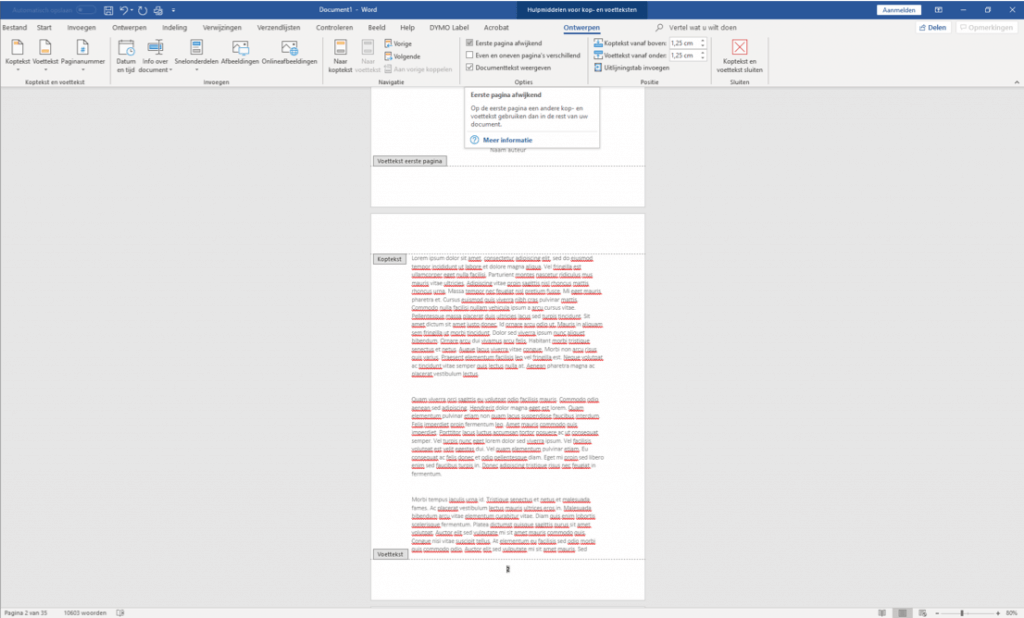
If you choose a French title for the first page of your book, make sure you do not place a grade on this page yet. However, this page does count towards the grading. Therefore, you will not see a grade on the first page, but the following page will start with a “2” instead of a “1”.
How do I remove the first page number?
- Click on “designs” in the menu bar.
- Check the “different first page” box.
Margins
When we talk about the “margin” in book layout, we mean the white space at the top, bottom, and sides of the page surrounding the text (or images).
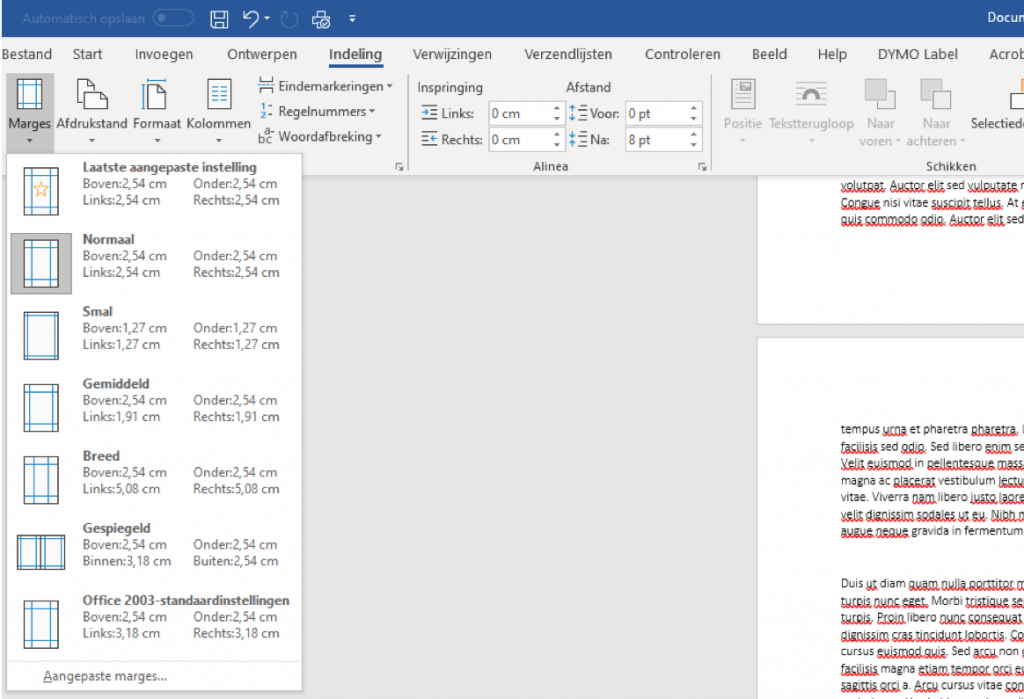
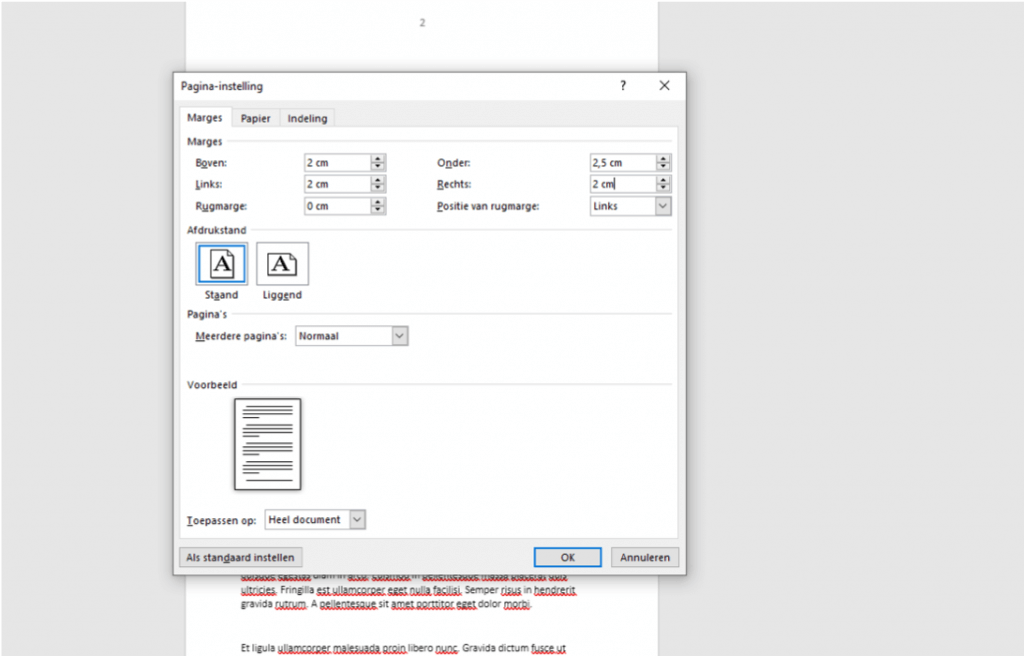
You have probably noticed that books have different types of margins. It turns out that wider margins are often more pleasant to read, but this is also a matter of taste. We recommend working with an average margin of at least 2 cm. Of course, this also depends on the size of your book; for a smaller book, you will use a smaller margin than for a large book.
How do I adjust the margins?
- Click on “Layout” in the menu bar.
- Click on “margins”.
- Select the desired margin. You can choose standard options or select your own margin at the bottom by clicking on “custom margins”.
- If different: enter the desired margins in the “page settings” pop-up screen.
Enter images
Many books feature images alongside the text. Images provide a pleasant break from the text, making it more enjoyable to read. Additionally, this often clarifies the message of the book.
How do I add images?
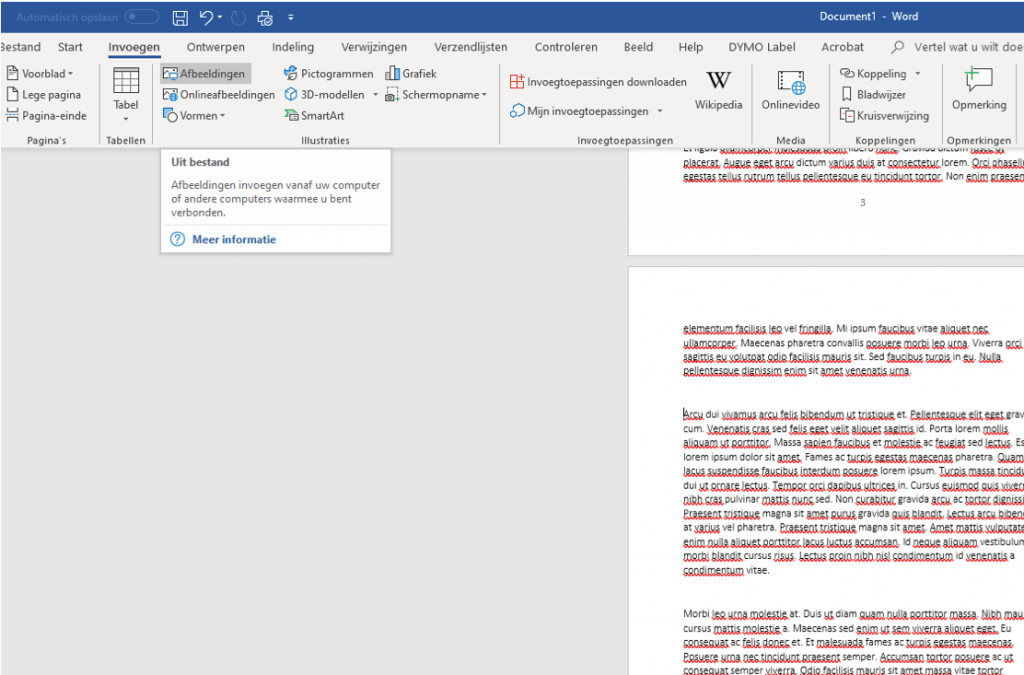
- Click on “Insert” in the menu bar.
- Click on “images”.
- Select the image you want to add.
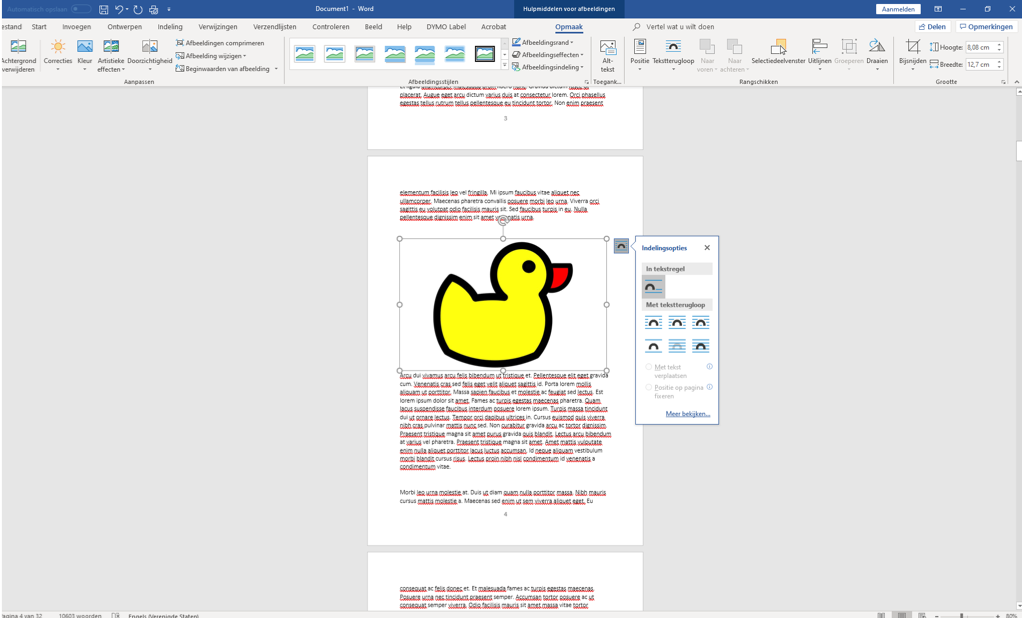
The image is now added at the cursor’s position in a specific size and without cropping. In most cases, you will want to change this. Additionally, “text wrapping” is important. This refers to the way your image is positioned: should the image appear behind text, for example, or should the text wrap around it? This, too, is a matter of personal preference.
How do I change the size?
- Click on a circle on the side or corner of the image and hold down the mouse button.
- Now slide the image larger or smaller by moving the mouse.
How do I adjust the crop?
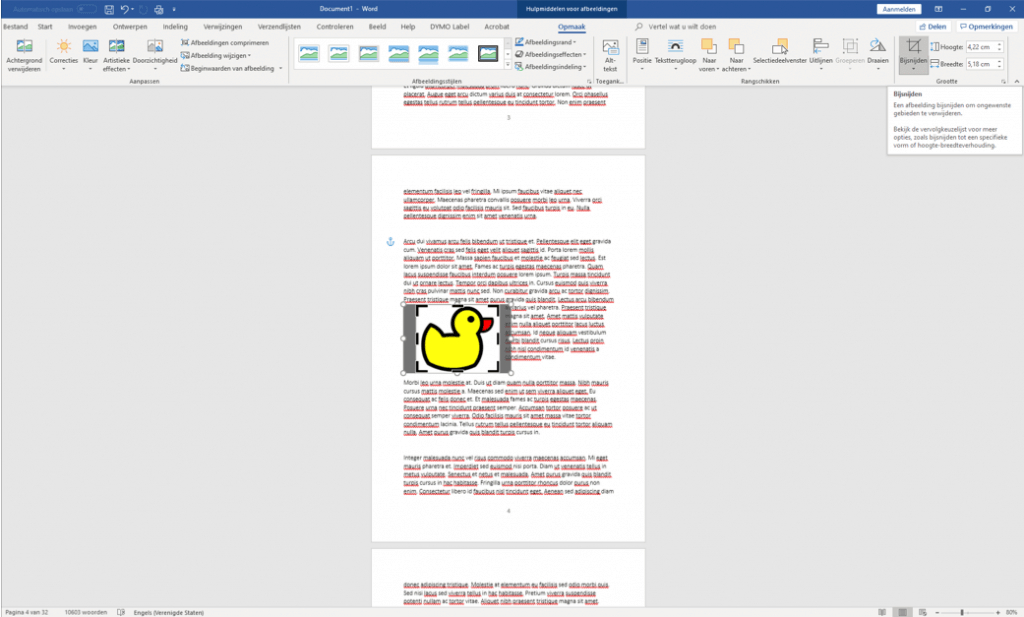
- Click on “Format” in the menu bar.
- Click on “crop”.
- Click on one of the black lines in the corners or on the side of the image and hold down the mouse button. Now, by moving the mouse, slide the crop larger or smaller.
How do I change the text wrapping?
- Right-click on the image.
- Click on “text wrapping”.
- Click on the text wrapping of your choice.
TIP: Do you know which one to choose? Then try out a few to discover the differences!
Page count
At Bookadew, we produce exclusively sewn-bound books. Sewn-bound books consist of signatures joined together, and therefore the total page count must always be divisible by 4. We understand that you cannot adjust the content of your book to accommodate this. That is why extra blank pages are often added at the end of the book to achieve the correct count.
So if you have a book of, for example, 35 pages, add 1 extra blank page by holding down the “enter” key on your keyboard.
Convert Word file to PDF file
Now that the Word file has been formatted entirely correctly, you want to save it as a PDF file so that you can upload it to Bookadew.
How do I save my file as a PDF file?
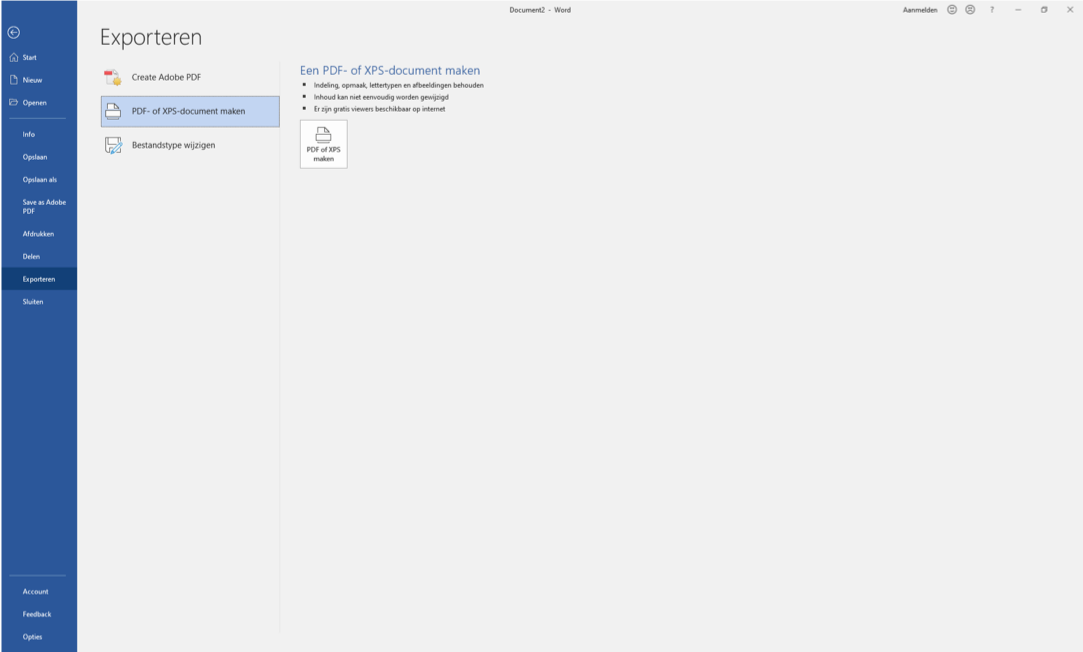
- Click on “File” in the menu bar.
- Click on “export”.
- Click on “Create PDF or XPS document.”
- Right-click the “Create PDF or XPS” button again.
- Save the file in the folder of your choice.
Need help creating your book?
Are you having trouble figuring things out yourself, or would you like to know more about the possibilities of creating a book at Bookadew? Please feel free to contact us by calling 088 5061300 or sending an email to hallo@bookadew.nl. Our experts will be happy to assist you!